



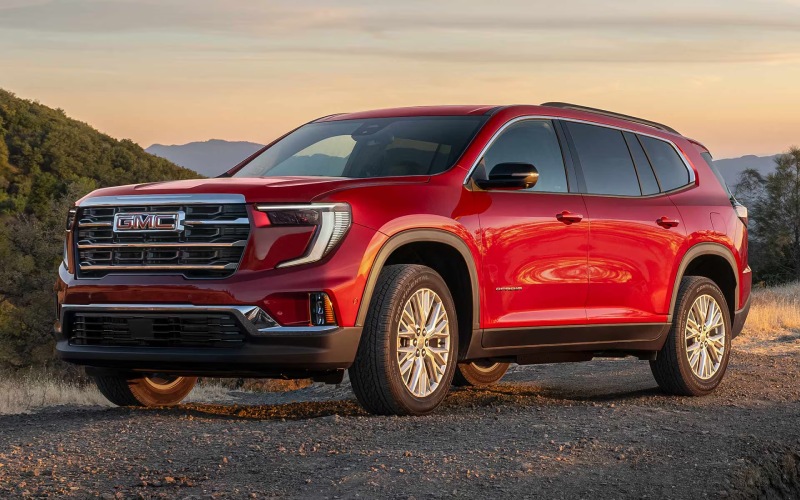
Wilcoxson GMC – Big-Screen Confidence for La Junta, CO Drives — Getting More from the 2026 GMC Acadia’s 15-inch Display and Driver Assistance
When you climb into a 2026 GMC Acadia, the 15-inch-diagonal center display immediately reassures you that daily driving in and around La Junta can be simpler. Maps are easier to read, camera views are larger, and your go-to apps are never more than a quick tap away. Add an available digital driver display and a Head-Up Display, and the information you rely on most becomes seamless—no more flipping between menus to find the basics you need during a busy morning on 6th Street or an afternoon run along US-50.
This guide focuses on how to get real value from that big display and key driver assistance features. Whether you use Google Maps for routing, Apple Music or Spotify for playlists, or prefer the native GMC interface, the Acadia’s layout is designed to handle navigation, audio, and alerts without clutter. Combined with features like available Adaptive Cruise Control, HD Surround Vision, and optional hands-free capability through Super Cruise, the Acadia has the practical tech mix that keeps you composed when schedules get tight and traffic gets dense.
Set Up Once, Enjoy Every Day
Before your first longer trip, spend a few minutes tailoring the display to your preferences. You can adjust the order of apps, set your favorite map view, and confirm your most-used shortcuts live on the home screen. This up-front time pays off—especially if you’re regularly juggling school drop-off routes around La Junta Primary and quick detours to Prairie Avenue for errands.
Pair your phone wirelessly and confirm contacts, media, and messages sync correctly.
Sign in to your Google account to enable Google Maps, Assistant, and personalized suggestions.
Choose your preferred cluster layout on the driver display for speed, route prompts, or driver aids.
Pin your most-used apps—Maps, Phone, Audio—so they’re a single tap from the home screen.
Customize camera shortcuts to quickly pull up the 360-degree view in tight parking around downtown La Junta.
With the basics dialed in, the system fades into the background and simply works. You’ll spend less time searching through menus and more time focusing on the road—precisely how in-vehicle tech should function.
Make the Most of Driver Assistance
Acadia layers in driver assistance features to complement that large display. The key is understanding how these systems help—and what they expect from you—so you feel informed rather than interrupted. Used well, they reduce effort and boost awareness whether you’re heading up to Pueblo for shopping or down to Las Animas for a quick visit.
- Adaptive Cruise Control: Maintains a set following gap on highways and works well for consistent traffic pacing on US-50.
- Lane Keep Assist: Provides gentle steering support if you begin to drift without signaling; useful for long, straight stretches.
- HD Surround Vision: Uses multiple camera views to help while parking or navigating tight driveways and angled curbs.
- Rear Cross Traffic Braking: Can brake when vehicles approach from the sides as you back out of crowded lots.
- Head-Up Display: Projects speed, nav prompts, and alerts so you can keep your eyes forward.
- Super Cruise (available): Enables hands-free driving on compatible highways, ideal for longer hauls toward Pueblo or further west.
Remember—these are assistance features, not substitutions for attention. But when you pair them with the 15-inch display and the clear, high-resolution camera views, you create a calmer, more aware driving experience day after day.
Everyday Scenarios the Big Display Solves
In a smaller screen, toggling between apps and menus can feel tedious. The Acadia’s wide canvas makes quick work of real-life needs around La Junta, where a lot of trips involve short hops that demand minimal fuss. Three scenarios where size and layout pay off most:
You can keep full-width map guidance up while splitting the lower portion of the screen for audio and phone—perfect when you are navigating to a new ballfield at a local park and need one-tap control over calls. The larger surface also makes camera views easier to read when parallel parking near a busy storefront. Lastly, voice commands are more reliable with clear visual confirmations, so using natural speech to find a coffee stop or reroute around construction becomes second nature.
Dial In Visibility for Night and Weather Changes
Southern Colorado’s skies change quickly—bright sunlight in the morning can soften into low light by evening. In the Acadia, you can set day/night themes or let the screen auto-adjust its brightness with the ambient light sensor. Quick tip: keep camera brightness slightly higher than your map at night for better contrast when backing into driveway spaces or loading zones. Pair this with the available Rear Camera Mirror for added clarity when passengers or cargo block the traditional mirror view.
If you regularly drive early on CO-109 or CO-194, try the Head-Up Display with a moderate brightness setting; it reduces eyes-down glances by surfacing speed and turn-by-turn prompts right where you need them. That small adjustment can help keep your attention focused when the road gets especially dark or quiet.
Finally, refine your alerts. If you prefer fewer chimes, adjust alert volume and frequency without turning off core safety functions. Keeping essential warnings active—but set to a comfortable level—strikes the right balance between awareness and peace of mind.
Feature Checklist to Personalize in Minutes
Not sure where to start? Use this quick checklist to personalize the Acadia for La Junta driving:
- Map View: Choose 2D or 3D and zoom level for your most common routes.
- Favorites: Pin frequently visited destinations like school, work, and grocery stops.
- Voice Shortcuts: Set quick phrases for calling key contacts and pulling up recent routes.
- Camera Presets: Add a one-tap 360-degree view tile for downtown parking.
- Driver Aids: Confirm lane, cruise, and blind-zone settings match your preferences.
- HUD Data: Select which metrics appear—speed limit, upcoming turn, and key alerts.
These small adjustments transform a great system into your system. It saves time, tames busy intersections, and keeps the cabin calm and coordinated on your schedule.
Frequently Asked Questions:
Can I run wireless Apple CarPlay and still use the native map on the 15-inch screen?
Yes. You can prioritize either the native Google Maps or your preferred smartphone mapping app and quickly switch between them, keeping core controls within easy reach.
How does the 360-degree camera help in tight lots around La Junta?
HD Surround Vision stitches multiple camera views to provide a top-down perspective of the SUV and surroundings, making it easier to judge curbs, parking lines, and nearby vehicles.
Do I need to set up my Google account to use the display?
No, but signing in enables Google built-in features like personalized Maps, Assistant, and app preferences, which simplifies everyday use and shortens setup time for future drives.
Will driver assistance features work on rural roads?
Many do. Systems like Lane Keep Assist and Adaptive Cruise Control can support a range of roads with clear markings. Features like Rear Cross Traffic Braking and camera views help in parking and low-speed scenarios regardless of the road type.
For shoppers who want tech that genuinely helps in daily life, the 2026 Acadia’s display and driver aids deliver. When you’re ready to explore hands-on, visit our team—Wilcoxson GMC—serving Colorado Springs, Pueblo, and La Junta—for a demonstration that highlights your everyday routes and priorities.
Request more 2026 GMC Acadia information
Connect with us

